Click through your reports
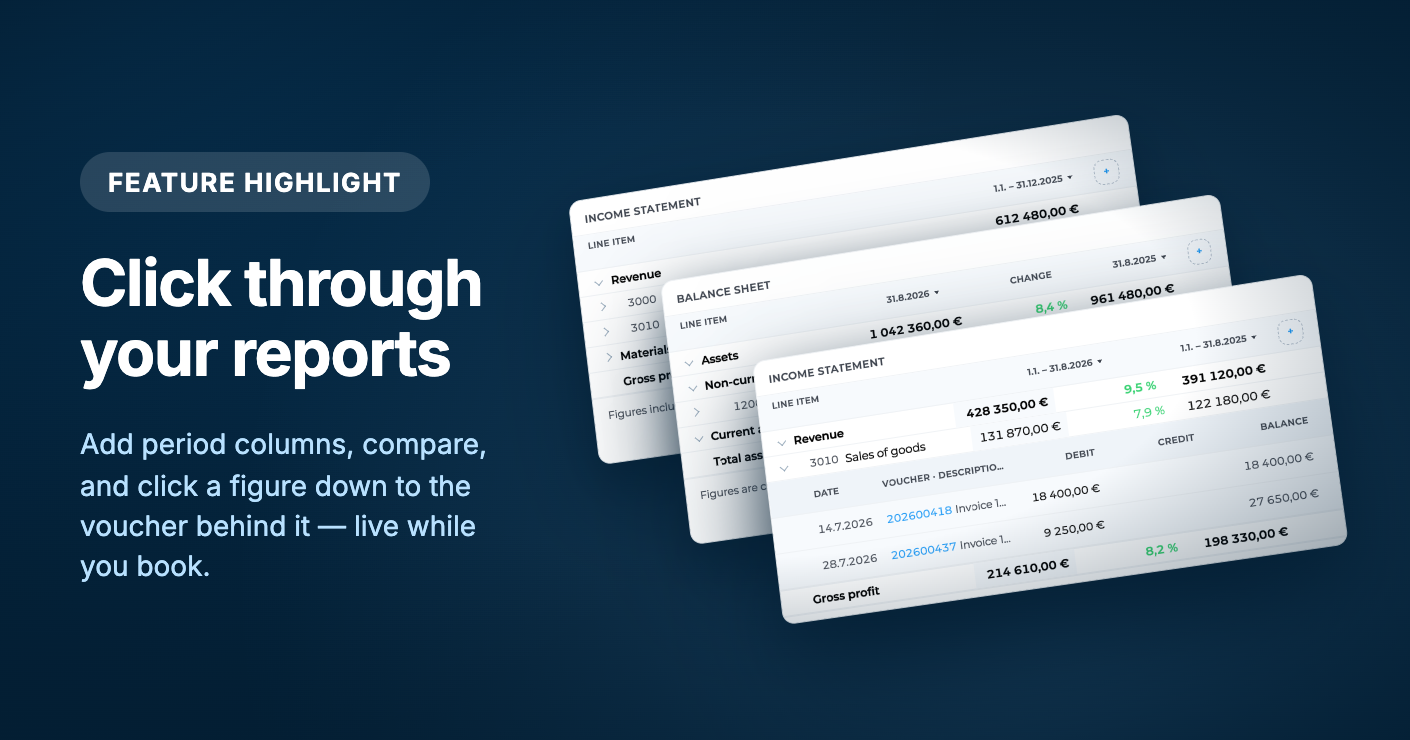
Open Reporting → Reports and the figures load on the page. Add period columns, turn on comparison, and click from a heading down to the account and the voucher. Keep the tab open while you bookkeep in another window. Rhe report stays in sync.
You can still Export a PDF or CSV with the same periods, columns, comparison, and tags you see on screen.
See the numbers, then go deeper
Pick a report from the toolbar:
Balance sheet
Income statement
General ledger
Journal
VAT report
VAT EU Recapitulative Statement (when you are VAT liable)
Expand all and Collapse all open or close the whole tree. Filter by tags when you want a slice of the books.
Click a heading to open it. Click an account to see the entries behind the figure: date, voucher, description, debit, credit, and balance. Open the document from there without leaving the report.
General ledger: click an account for its entries in the selected period, including opening and closing balance.
Journal: click a voucher to see its posting lines.
VAT report: open a return line to see the entries it is built from.
Period columns and comparison
On the balance sheet and income statement, each period is its own column. You can have up to four.
From a column header you can:
Pick a period (this month, previous month, current or previous accounting period, this year, previous year, all history, or Custom)
Insert column before or Insert column after
Rename column
Remove column
Turn on Show comparison when you have two or three period columns. Compare as Amount or Percent. A Change column sits next to the periods.
The best part? It’s live while you book!
Keep Reports open in one window and bookkeep in another. When a document changes, the report refreshes on its own.
Luca can sit with the report too. Prompt chips on the toolbar are starting points — for example “Why is profit up on last year?” or “Summarise the balance sheet.”
When you need a file, use Export: PDF or CSV.